

 Managed Sync
 ActionKit
 Workflows
Overview
Paragon’s Functions are built-in cloud functions that provide a powerful way to add custom logic to your workflows. You can use functions to transform or compute data, or even to perform more complex operations within workflows that you might otherwise need to write server-side code for. Paragon functions support Javascript (ES7) and provide access to select npm modules.JavaScript Libraries
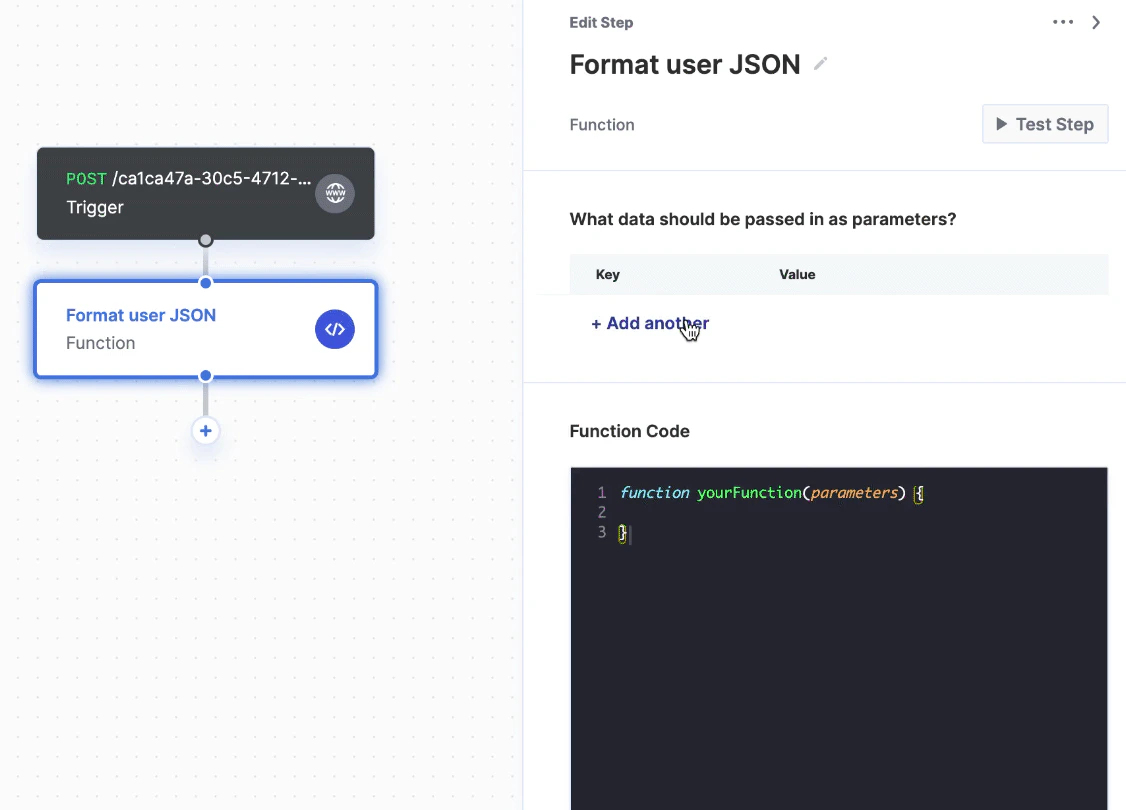
Defining function parameters
You can pass any data from upstream steps into your Function as parameters using the key-value table under “What data should be passed in as parameters?”. Under “Key”, you can give your variable a name and under “Value” you can insert a variable from the variable menu by clicking the dropdown button.Writing function code
You can write your custom code in theyourFunction() function, which accepts any valid Javascript (ES7). Any data that you return from this function can then accessed by downstream steps in your workflow.
You can access parameters defined in the key-value table above by referencing parameters.<parameter_name> within yourFunction(). For example, a parameter whose key is email can be accessed in the function by referencing parameters.email.
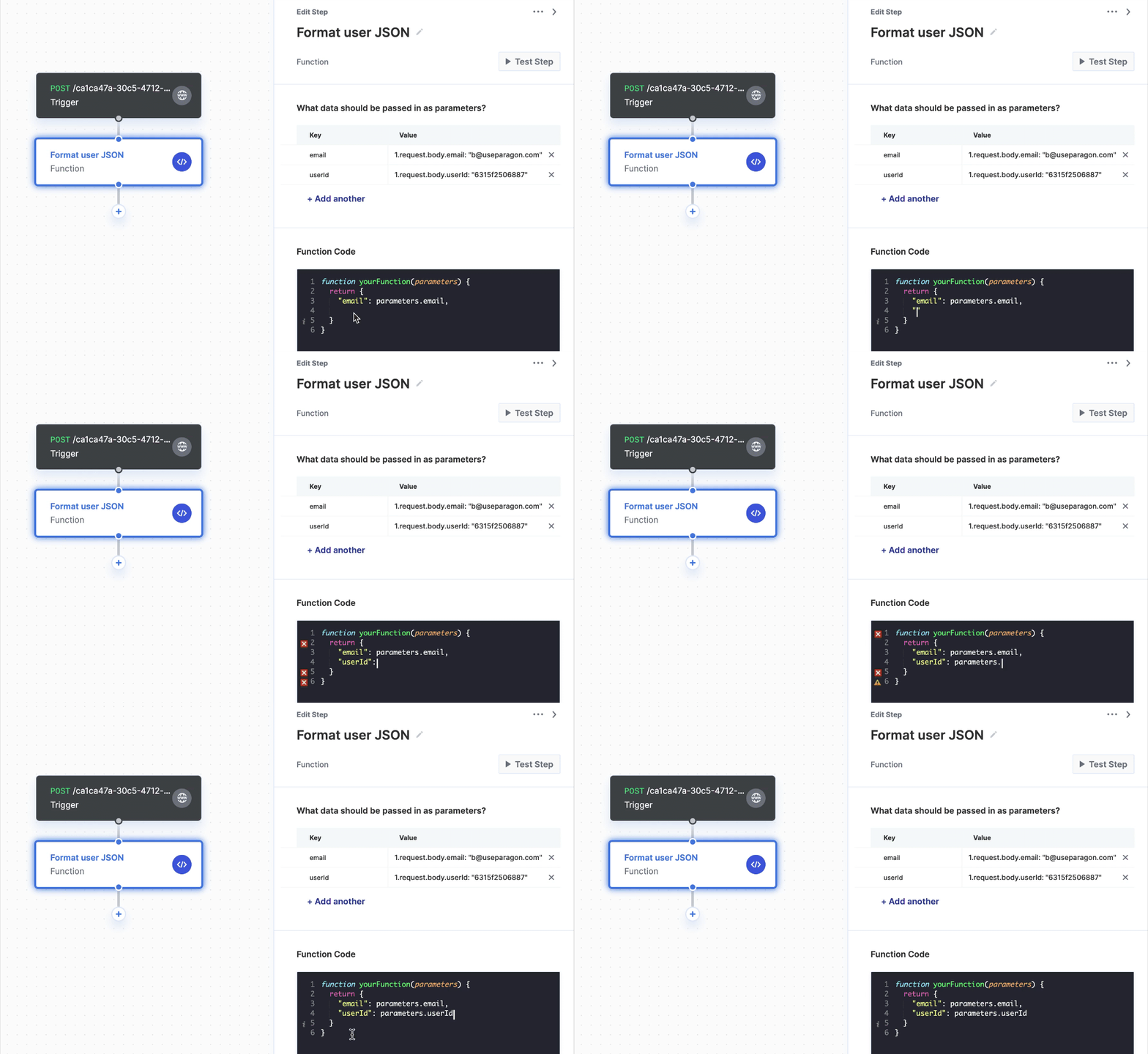
Using NPM modules in functions
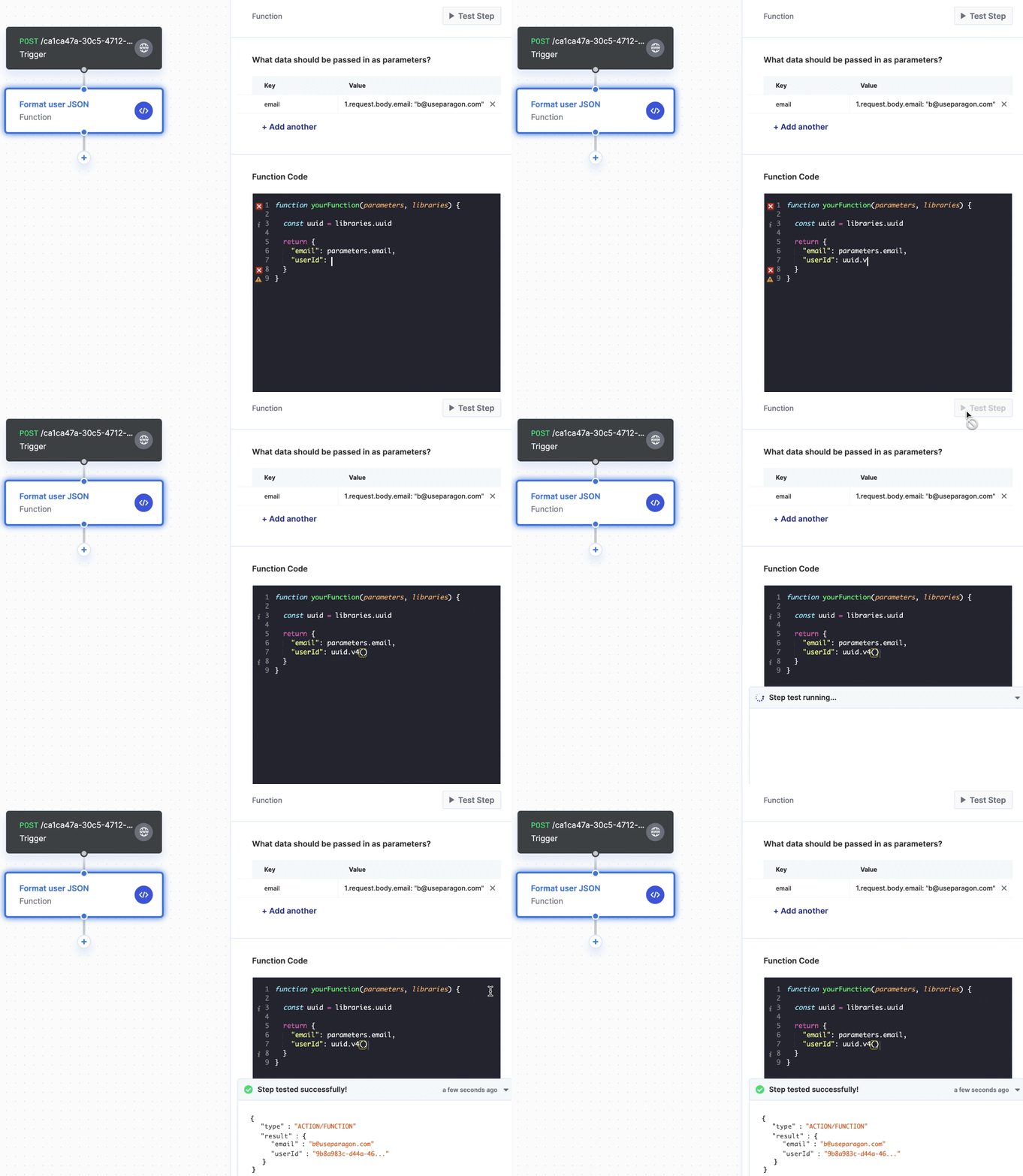
Paragon provides access to certain npm modules that can be used within functions. Here’s an example of how you can access theuuid npm module within a function.
JavaScript
libraries parameter to yourFunction(). If your function needs to work asynchronously, you can declare it async.
Using Field Mappings in functions
If you have configured a Field Mapping User Setting for your integration, you can reference the mapping object in a Function step and use the built-inparagonUtils library to programmatically transform data between your application format and the integration format.
This is useful when you need more control over the transformation process than the built-in “Apply field mapping” option on triggers provides — for example, when transforming arrays of objects, applying additional logic during the mapping, or chaining mappings with other operations.
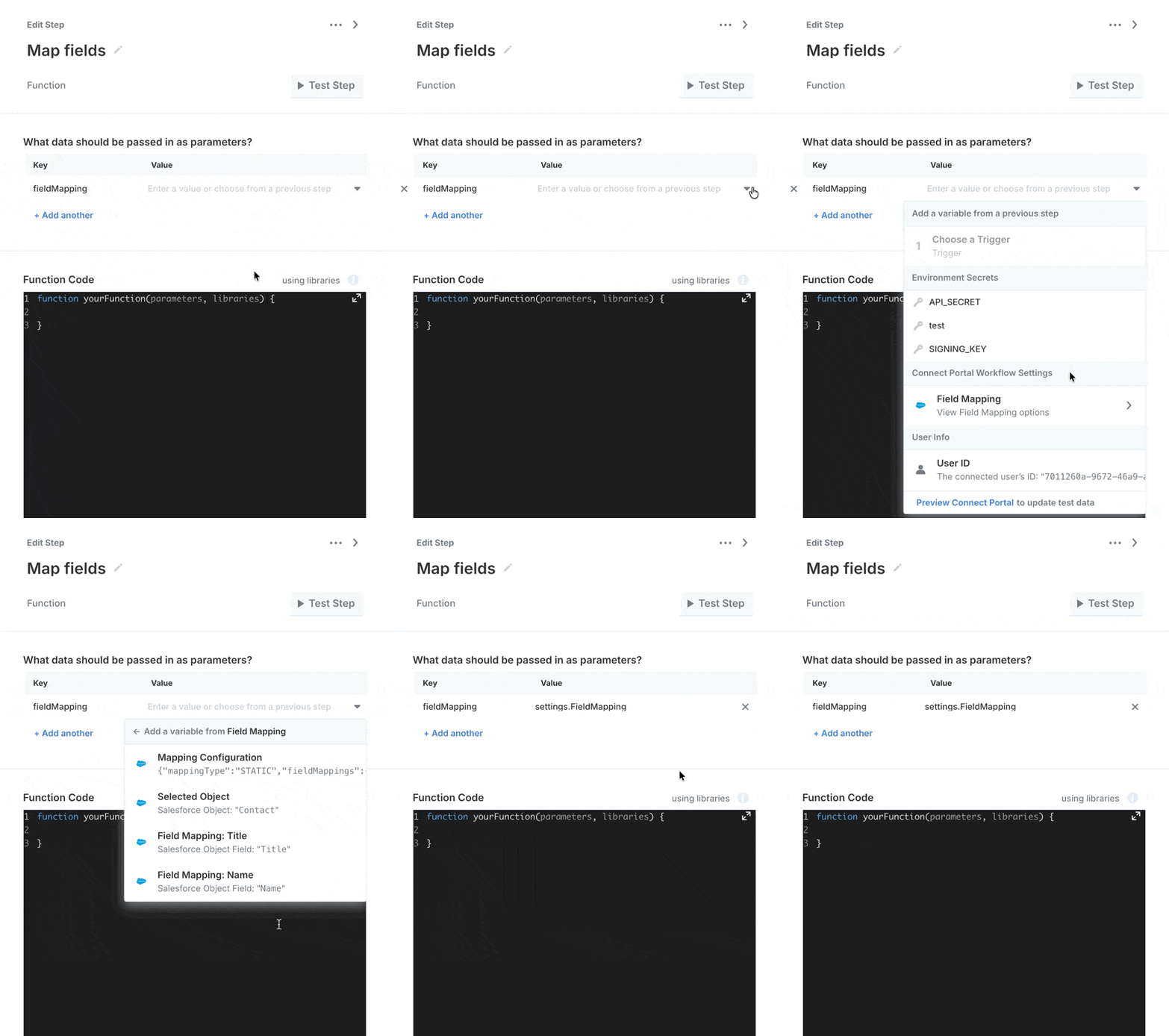
Passing a field mapping to your function
-
In your Function step, add a parameter (e.g.
fieldMapping). - Click the dropdown for the parameter value, navigate to Connect Portal User Settings, and select the Mapping Configuration for your field mapping.
-
You can then use the field mapping configuration value as
parameters.fieldMappingin your Function step. Pass it toparagonUtils.mapIntegrationObjectsorparagonUtils.mapApplicationObjectsto apply the mapping to another value.
Transforming data with paragonUtils
The paragonUtils library provides two functions for transforming data using a field mapping configuration:
- mapIntegrationObjects
- mapApplicationObjects
Transforms an array of integration objects into application objects using the field mapping. Use this when you receive data from an integration and need to convert it to your application’s format.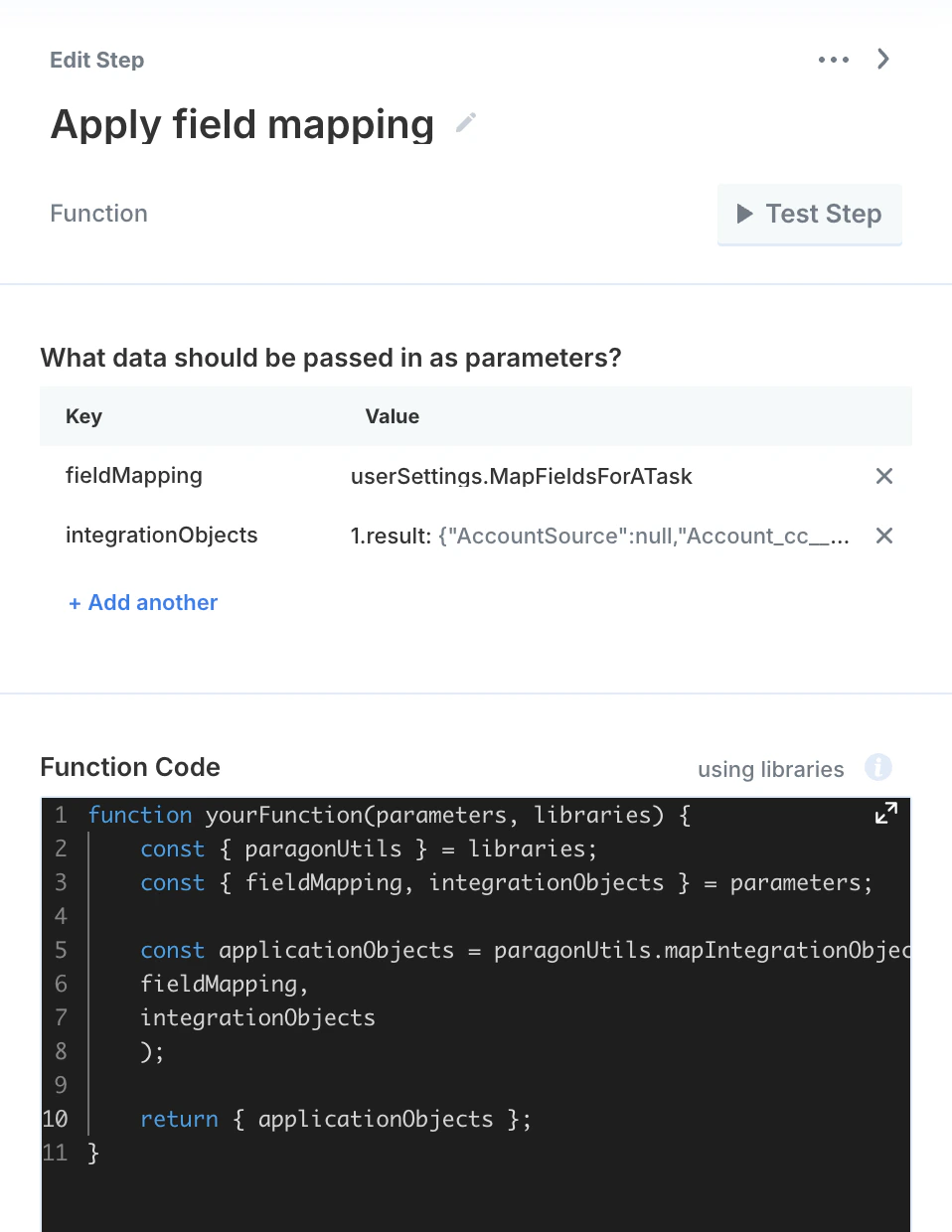
mapping— The field mapping configuration object passed as a parameter from Connect Portal User Settings.integrationObjects— An array of integration objects to transform.
Subject (integration field) to title (application field), an input of [{ "Subject": "Buy groceries" }] would produce [{ "title": "Buy groceries" }].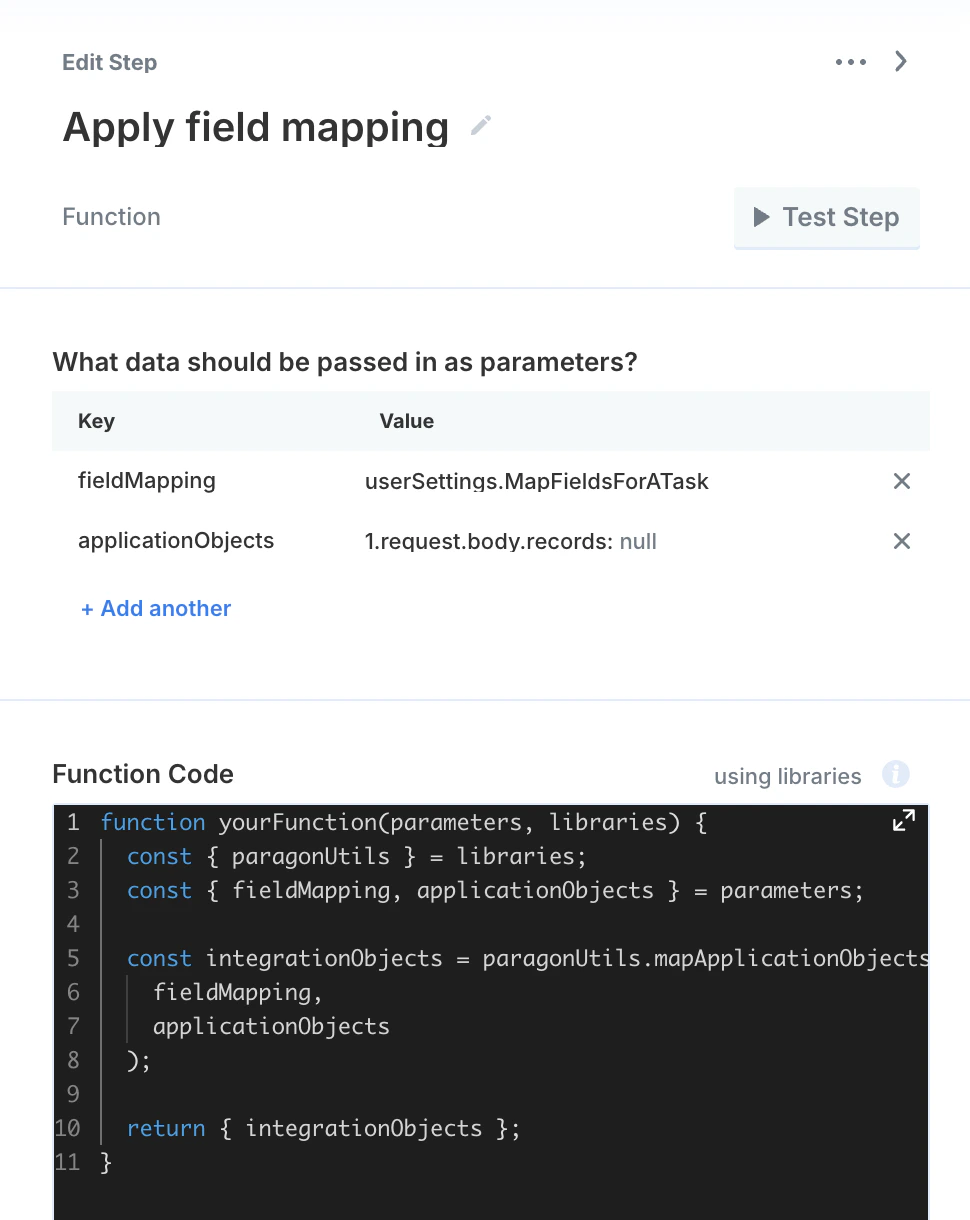
null, undefined, or not an array, the functions return an empty array.
Considerations
When using Functions, there are a few things to keep in mind:Memory Constraints
At the system level, the container that processes workloads is limited by its available resources. Paragon limits step input and output sizes based on your billing plan:- Trial: 50 MB
- Basic: 50 MB
- Pro: 100 MB
- Enterprise: 1 GB
Time Constraints
Paragon sets time limits for how long Functions can execute based on your billing plan to ensure your workflows run smoothly. If a Function takes longer than allowed, the workflow step will fail. Here are the maximum execution times by billing plan:- Trial: 1 minute
- Basic: 1 minute
- Pro: 1 minute
- Enterprise: 1 hour