

 Managed Sync
 ActionKit
 Workflows
Overview
Custom Dropdowns allow you to include custom dropdown inputs in the Connect Portal as a part of the User Settings of your integration. You can use Custom Dropdowns to allow your users to select:- Data from your app, like a destination Project to sync Jira tickets into
- A type of User Setting that Paragon does not support natively, like a custom Salesforce enum.
Usage
To get started with Custom Dropdowns, visit your User Settings and add a new type of Custom Dropdown: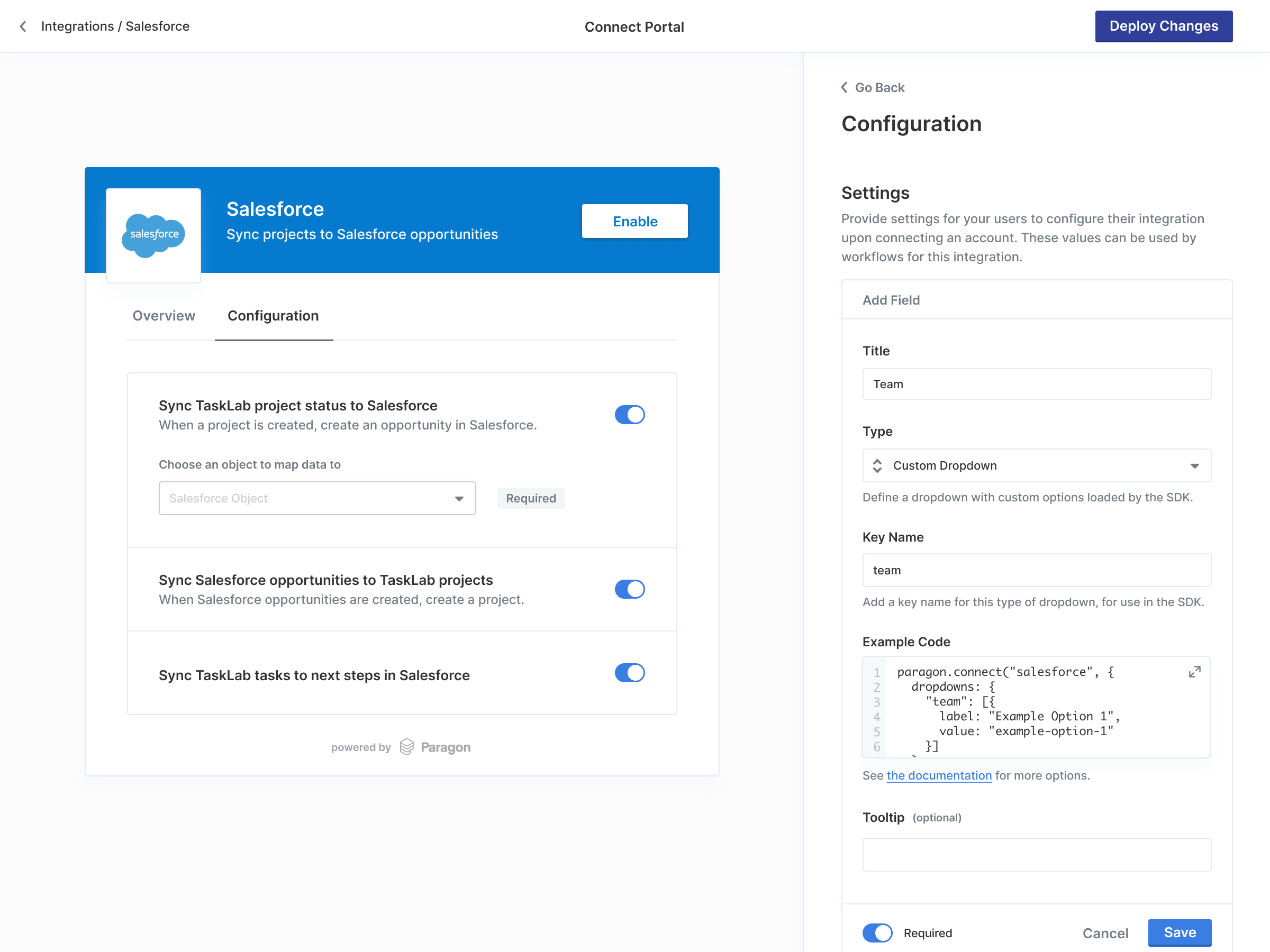
paragon.connect call to include the dropdowns parameter, which has the key names that you set above. This key can be set to an array of options with two keys:
label— The displayed text shown to the user for the dropdown option.value— The value that will be saved (e.g. an option ID) when the user selects this dropdown option.- This value must be unique across all options in the array. If the value is found to be non-unique, the non-unique option will not be displayed in the list, and a console warning will appear.
- If either
labelorvalueare missing, the option will not be displayed, and a console warning will appear.
value property of the chosen option (or undefined if unselected).
Pagination and search
If your dropdown data is a large data set, consider defining pagination and search instead of passing a static list. Here is an example of aloadOptions function to paginate over a user’s Google Drive folders:
Example: Custom Dropdown loading Google Drive folders
loadOptions function instead of a static list, the dropdown will paginate through options as the user scrolls and allow for remote search across all available data.
loadOptions will be called with 2 arguments:
cursor: The last cursor to be called by the dropdown. If loading for the first time, this value will be undefined.search: The search term that the user typed into the dropdown. If no search term was provided, this value will be undefined or the empty string ("").
Customizing dropdown refresh
By default, dropdown options are loaded once when the Connect Portal is opened or when thesearch term changes.
If your options change frequently and you want them to reload each time the user opens the dropdown, you can set the refreshOnOpen option to true:
refreshOnOpen is set to true, the loadOptions function will be called again each time the user opens the dropdown, ensuring they always see the most up-to-date options.
Resolving a stored value
When a user selects an option, only the option’svalue is saved. If that option was loaded through search and is not in the default list returned by loadOptions, the Connect Portal cannot recover the label on its own after a reload.
To show the saved selection’s label when the Portal opens, provide a resolveOption function. It receives the stored value and should return the matching option, or null if it cannot be resolved:
resolveOption is optional. If you omit it, the SDK falls back to passing the stored value as search to loadOptions. That works when your loader can look up options by value, but not when it only filters by label.
The selected label stays visible for the rest of the current session even without resolveOption.